Running a scan
Launch a test against a scope, watch the planner work in real time, and stay in control with approval gates for anything intrusive.
Scan types
SimpleSec runs three kinds of tests. Most teams start with DAST.
DAST — live testing
The core product. The AI planner actively probes a running target through recon, enumeration, and validation. This is what "running a scan" usually means.
SCA — dependency scanning
Ingests output from a dependency scanner (osv-scanner, Trivy, npm audit) so software-composition findings live alongside everything else.
SAST — static analysis
Ingests SARIF from a static analyzer (Semgrep, CodeQL). Source-code findings get the same triage, reporting, and history.
Launch a test
- Pick the engagement you want to test from Engagements (or start from the Launch Test screen).
- Set the scope — the hosts this run will touch. On your first test these register themselves as assets automatically; after that, scope is checked against the engagement's asset list.
- Choose options — schedule for later or set a recurrence, and decide whether destructive actions are allowed (see below). Destructive actions are off by default.
- Start the run. It kicks off as a background job on our servers.
A few checks run before a test starts: your email must be verified, your trial or plan must be active, and you must be within your daily scan limit. If a launch is blocked, the dashboard tells you which gate stopped it.
Watch it run
Open the run in the console / Run Inspector to watch live. A LIVE badge shows while the test is in flight. You'll see the planner pick each tool, the streamed tool output, and the judge's decision after every step — advance, retry, or pause. You can step through, or cancel a run at any time.
Tests run independently of your browser. Close the tab, lose your connection, or even survive a server restart — the run continues and resumes cleanly. Come back to the console later or get an email when it completes.
Schedule and recurrence
You don't have to run tests by hand. When launching, set a scheduled start time to run once later, or a recurrence — weekly, biweekly, monthly, or quarterly — to keep a scope continuously tested. Recurring tests are how teams move from a once-a-year pentest to ongoing coverage.
Approval gates
SimpleSec keeps a human in the loop for anything sensitive. When the planner proposes a destructive or high-impact action, it creates an approval request instead of just running it. An admin reviews it on the Approvals screen and approves or denies.
- Destructive actions are opt-in per run — you decide at launch whether to allow them at all (and it's a Standard-plan feature).
- They're always off for tests triggered from CI/CD, so automated pipeline runs can never take a destructive action unattended.
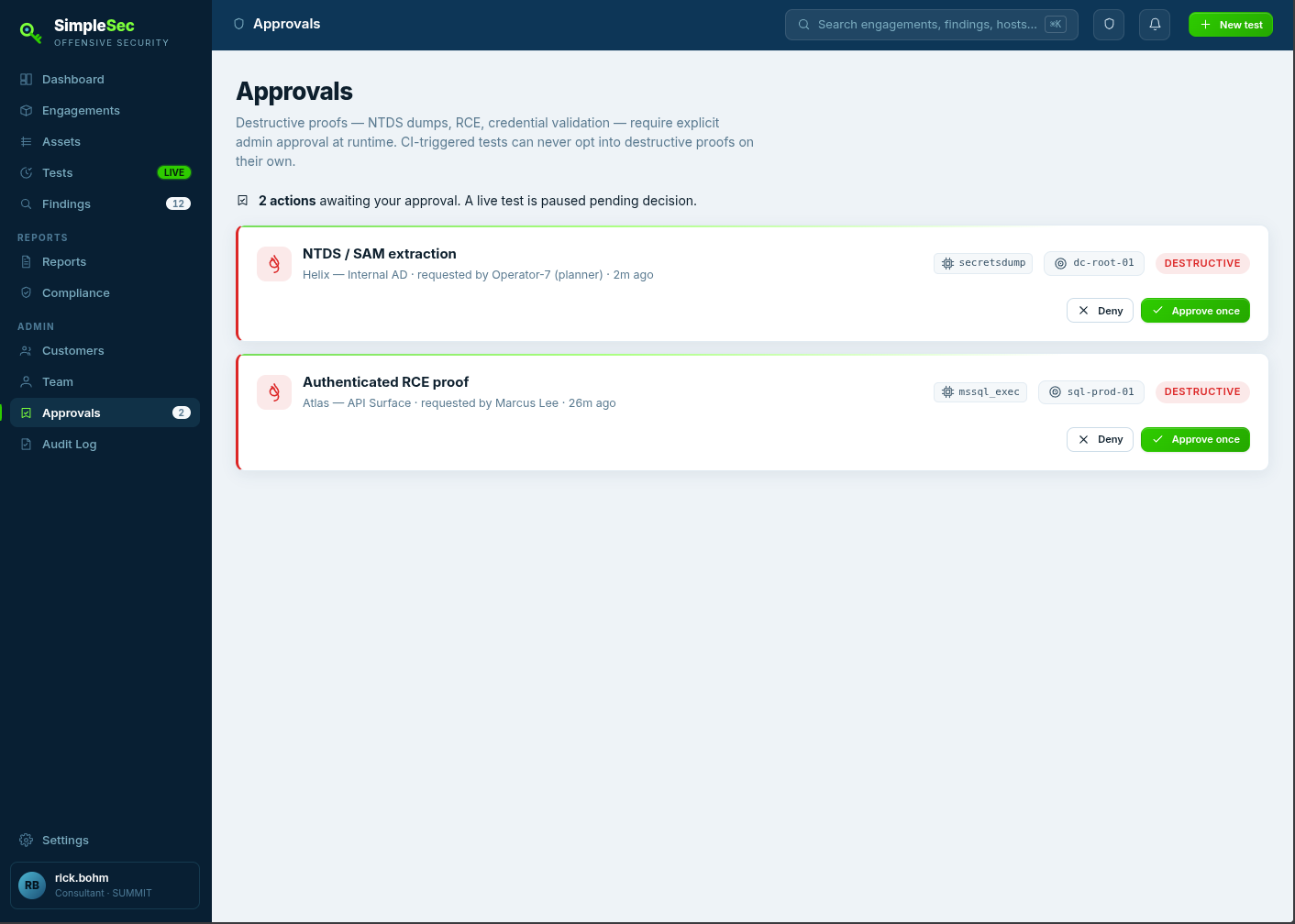
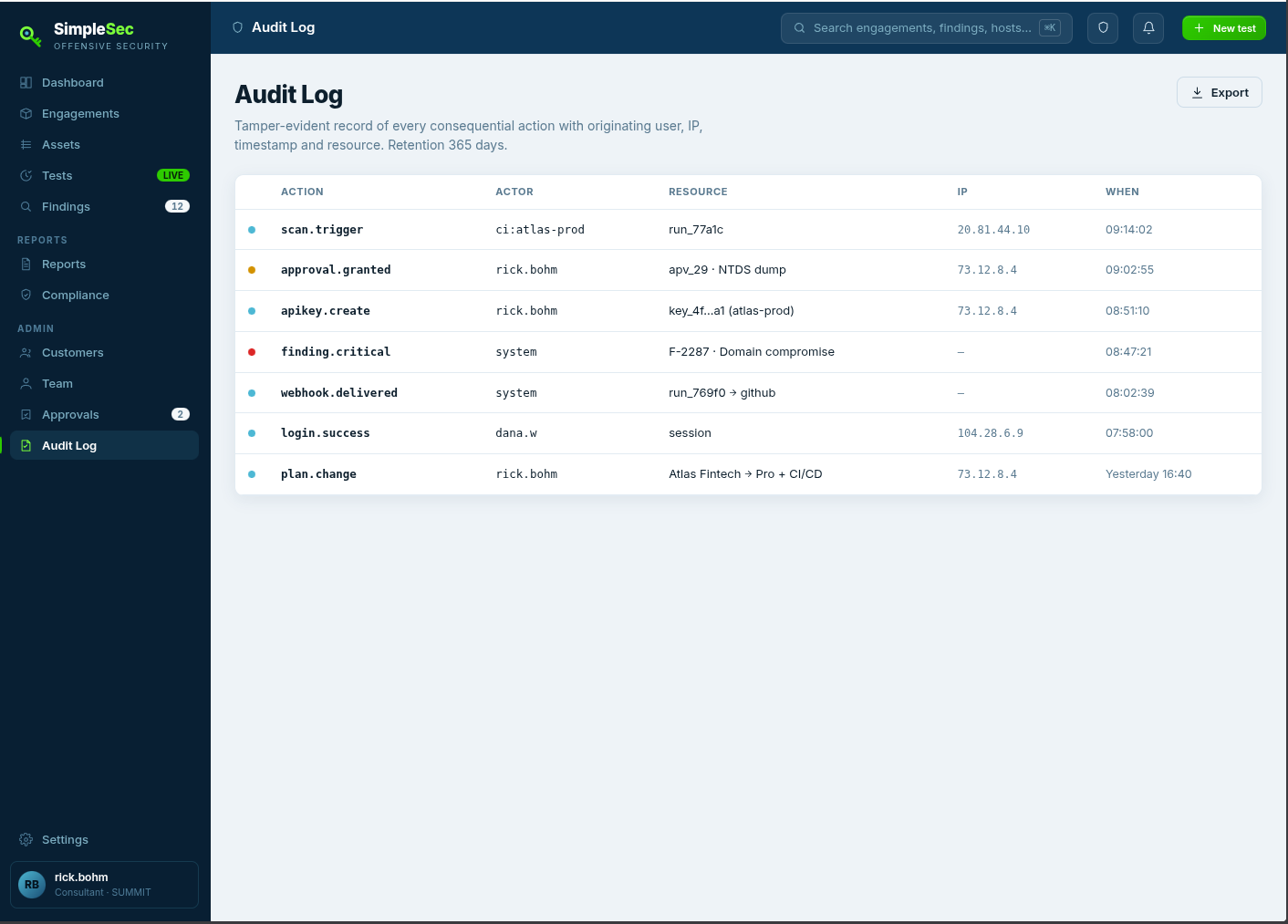
Every approval decision — who decided, when, and from what IP — is recorded in the Audit Log, a tamper-evident record of every consequential action in the workspace.
When a test finishes
Each completed test lands a decision — pass, warn, or
fail — based on the severity of what it found. From there you move to triage and reporting:
see Findings & reports.